03 / Splitline field manual
Inspect row datasets
JSONL, CSV, and TSV share one row-shaped workflow. Use the file rail for dataset context, then move among Rows, Schema, Issues, and Raw without changing the source.
Updated
Organize loaded files
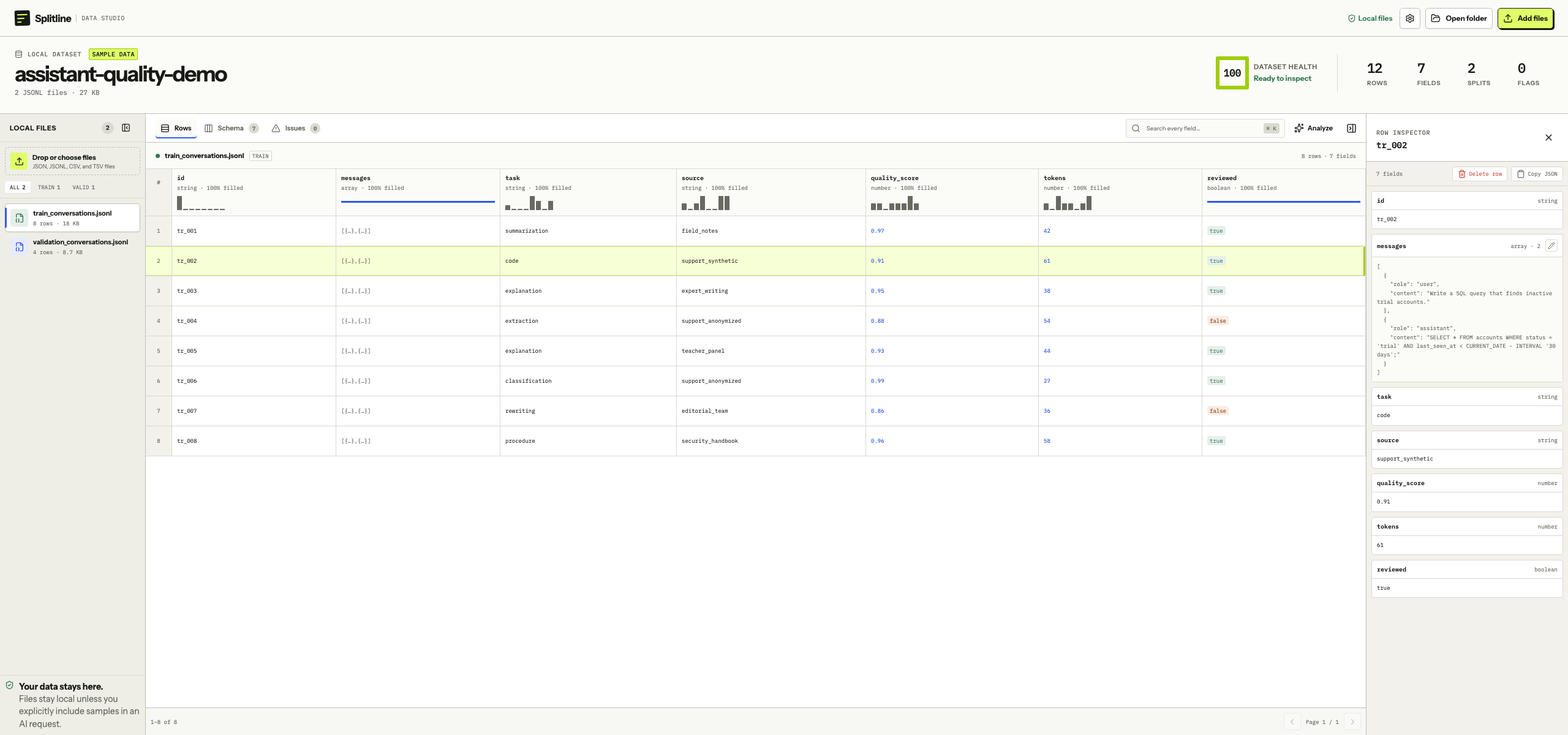
The file rail shows every loaded file, its inferred split, row count, size, parse-issue count, and unsaved-edit state. Choose All, train, valid, test, or other to filter the rail; select a file to make it active.
The masthead summarizes all loaded row files with a health score, total rows, fields, splits, and flags. The score is a pointer, not a verdict: use Issues to read the evidence behind every deduction.
Rows, Schema, search, the row inspector, and Raw describe the active file. Issues checks every loaded row file and compares their schemas.
Browse and search rows
-
Choose a file
Select it in the rail. Rows displays 25 records at a time, with column widths negotiated from the visible data.
-
Search every field
Type in Search every field or press ⌘ K. Search scans top-level and nested values in the active file, then paginates the matching rows.
-
Open the evidence
Select a row to open the inspector. Expand fields to read long text, nested objects, and arrays, or copy the complete row as formatted JSON.
Read Schema and Issues
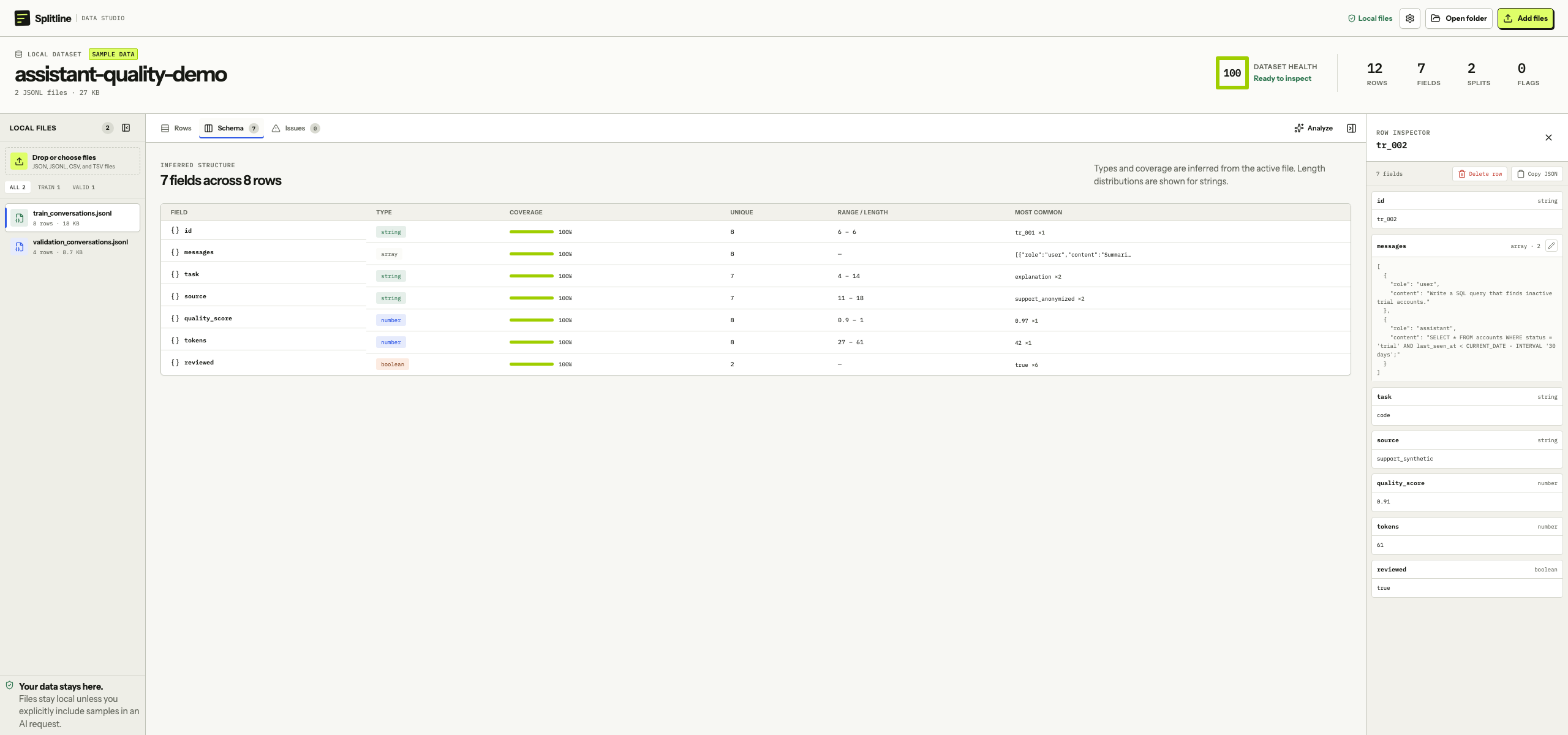
Schema profiles fields across the active file. For each field it shows the inferred type, coverage, unique-value count, numeric range or string-length range, and most common value. Switch files to compare their profiles directly.
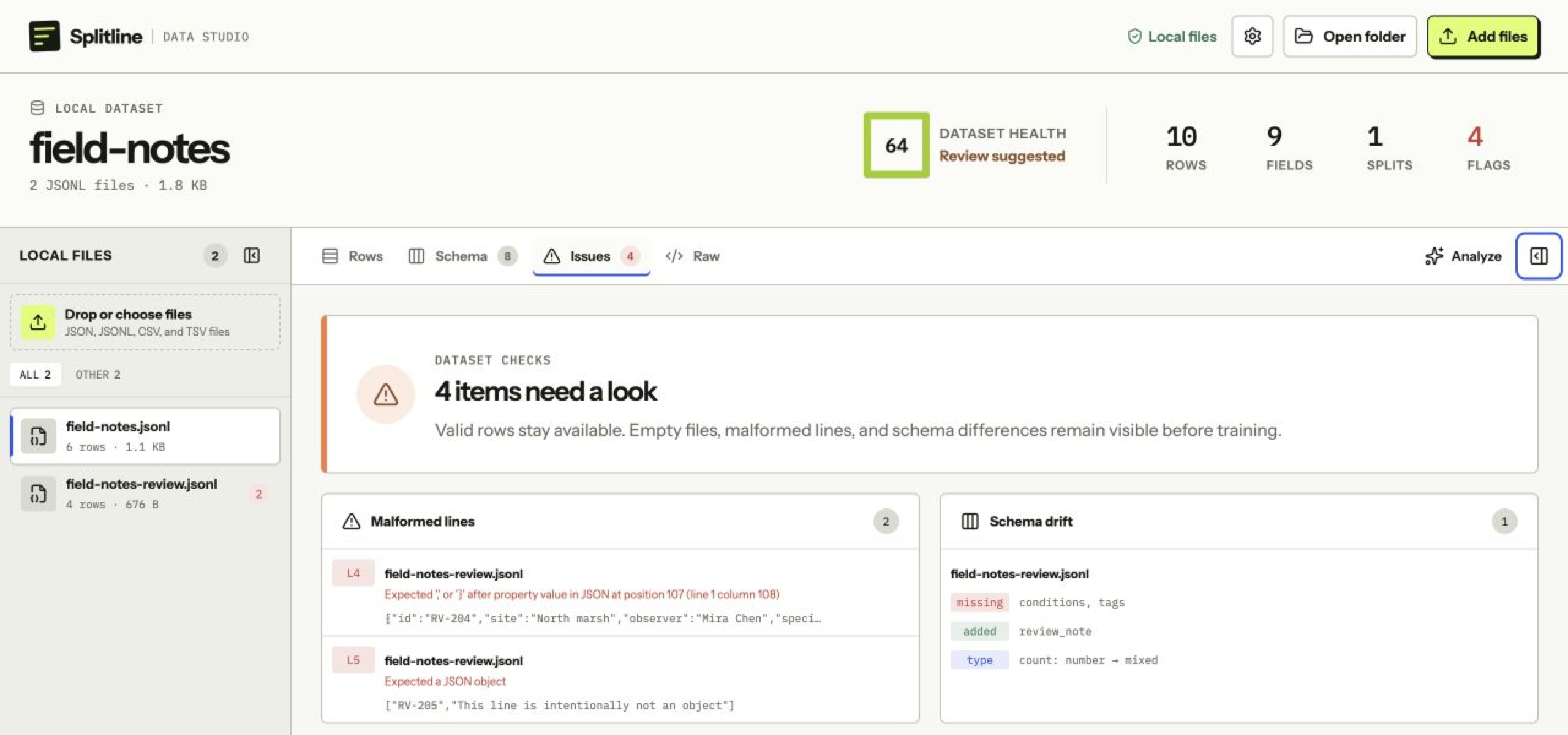
Issues checks the loaded row dataset as a group. It keeps valid records available while reporting:
- malformed or unsupported records with their file and source location;
- fields missing, added, or changed in type relative to the first loaded row file;
- mixed value types within a field; and
- files with no valid rows.
Inspect Raw source
Open Raw when you need the exact retained JSONL, CSV, or TSV text. For a complete file at or below 1 MiB, this view preserves untouched whitespace and malformed lines. Pending edits are applied with the same patch operation that Save will use, so the preview matches the eventual output while untouched lines remain byte-identical.
Raw is unavailable when:
- a Finder load stopped at a size, record, issue, or field-value budget, because a partial file retains no complete source; or
- the complete retained source is larger than 1 MiB, because mounting it would no longer be an inspection-sized operation.
Stay in Rows, Schema, and Issues for those files. Splitline does not reconstruct parsed records and call the result “raw.”
Check split inference
Splitline infers the split from file and path names. A split word in the filename wins over a split-like parent folder.
| Split | Recognized examples |
|---|---|
| Train | train.jsonl, training-records.csv |
| Validation | validation.jsonl, valid.tsv, val.csv, dev.jsonl |
| Test | test.jsonl, test-records.tsv |
| Other | Any supported row file without a recognized split name |
These rules are identical for JSONL, CSV, and TSV. The format tag changes; profiling, issue checks, Rows, editing, and Analyze do not branch into a different workflow.