04 / Splitline field manual
Explore JSON documents
Keep an arbitrary JSON document in its original hierarchy. Follow paths, search a branch or the whole file, and move through large containers without mounting an unbounded tree.
Updated
Read the document workspace
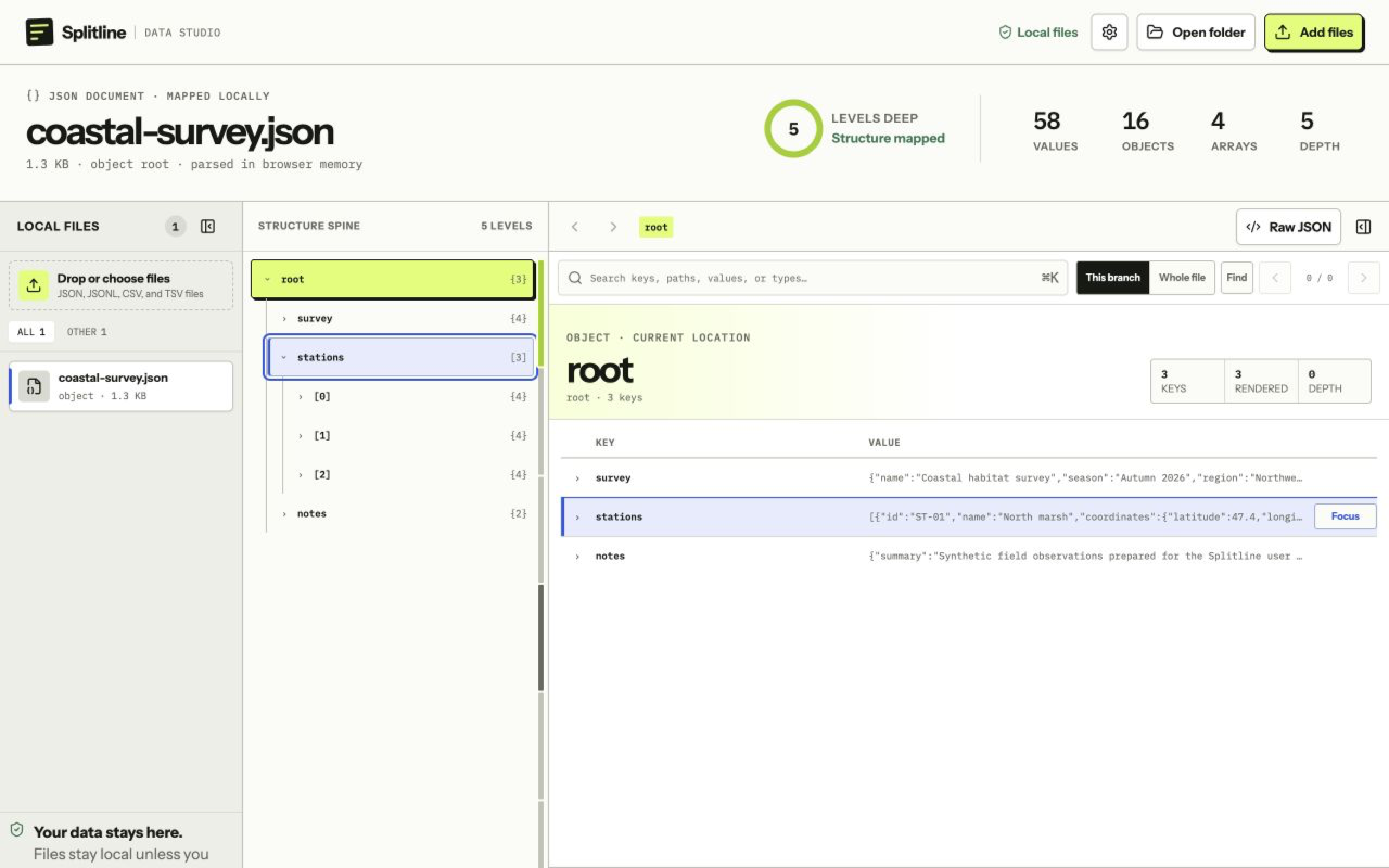
Opening .json starts in Explore, not in the row table. The masthead identifies the root type and reports value, object, array, and depth counts. The workspace then separates three jobs:
- the structure spine maps the active branch and its nearby containers;
- the path bar keeps back, forward, and breadcrumb navigation visible; and
- the document stage shows the selected subtree, with an optional value inspector for one selected value and its full path.
Explore, Raw JSON, and View as rows never add JSON to the edit or save path. Analyze is also limited to JSONL, CSV, and TSV row datasets.
Navigate paths and values
Select a container in the structure spine or choose Focus from the document stage to make that path the active branch. Breadcrumb segments jump to an ancestor; back and forward move through the focus history.
Expanding an object or array in place reveals its children without changing the active breadcrumb. Select a primitive or container value to open the value inspector, where the full copyable path and a bounded value preview remain visible.
Object and array rows preview bounded JSON in the value column. A compact preview is intentional: Splitline does not enumerate an arbitrarily wide value merely to fill one row.
Search JSON
Press ⌘ K or focus Search keys, paths, values, or types. Search defaults to This branch, rooted at the path that was active when you ran it. Choose Whole file when the result may live elsewhere.
Each match keeps its full path. Open a result to reveal the matching value in context, then use the previous and next controls to move through the result set. Search yields during large scans and bounds its query, visited nodes, paths, and visible results so a broad term cannot monopolize the app.
If you navigate somewhere else, rerun the search to use the new active branch as its scope.
Move through large arrays
Explore renders at most 100 children of an object or array at once. Large arrays gain 1,000-item landmarks in the structure spine and nested 100-item windows in the stage.
Use the previous and next window controls, choose a range landmark, or jump directly to an index. These controls change the bounded window; they do not clone or mount the rest of the array. For very wide objects, focus or search reveals keys outside the current window.
Use Raw JSON and rows
Raw JSON is available only for a complete document at or below all three working limits: 1 MiB, 5,000 values, and 64 levels. It renders the parsed document in one syntax-colored surface, with every object and array initially expanded and foldable from its opening brace or bracket.
It is a readable rendering of the parsed JSON value, not the original bytes, spacing, or key-token formatting. By contrast, Raw for row datasets shows retained source text exactly, including untouched malformed lines.
When the active node is a non-empty array made entirely of objects, View as rows opens a read-only table bridge. It shows 25 records per page and samples up to 100 fields from the first 500 records. Choose Explore to return to the document hierarchy; the source and active JSON document do not change.