06 / Splitline field manual
Analyze a row dataset
Ask an OpenAI-compatible model for a constrained reply, then keep searches, filters, aggregations, and chart construction inside Splitline on your Mac.
Updated
Know when Analyze applies
Analyze works with the active JSONL, CSV, or TSV file. It uses the same row-shaped data and field profiles as Rows and Schema, so changing formats does not change the interaction.
Arbitrary .json documents never enter Analyze—even when View as rows can display one compatible array. Add a row dataset before opening the analyst.
No model receives a background request. A request begins only when you open Analyze, review the composer boundary, and press Send or use a suggested task.
Connect an endpoint
The first time Analyze has no provisioned or saved connection, it opens Connect a model, once.
-
Enter the chat-completions endpoint
Use an OpenAI-compatible URL. Remote endpoints must use HTTPS; plain HTTP is accepted only for a model server on
localhost,127.0.0.1, or[::1]. -
Choose authentication
Select Bearer token,
x-api-key, a custom header, or no authentication. The model ID is optional when the provider supplies a default. -
Read the standing boundary
Acknowledge what future requests to this endpoint may contain, then choose Save and start analyzing.
On macOS, Splitline stores the token in its own Keychain entry and keeps only non-secret connection settings in the app config directory. The endpoint’s operator may retain requests under its own policy. You can remove the saved connection later from the Analyze session’s Settings drawer.
If a server you control uses a self-signed or otherwise unverified certificate, the Mac setup offers an off-by-default trust checkbox. Enabling it disables certificate verification for that connection and removes protection against a network-path impersonator; leave it off unless you understand and accept that risk.
An administrator can instead pre-provision the Mac app with SPLITLINE_AI_* environment variables. Such a connection opens straight into chat and must be changed outside the app, followed by a relaunch.
Review the send boundary
The composer describes the next request from the same data used to assemble it.
By default, a request includes:
- your task text;
- the dataset and active file name, split, and row count;
- bounded field names and profile statistics; and
- up to eight prior task/outcome summaries when conversation memory exists.
It excludes the source file, row values, common values, result rows, prompts and results from unrelated sessions, and the complete dataset.
When a visualization is active, the request may also name its view and selected fields—but only when every field is already inside the bounded profile list disclosed for that request. If even one field falls outside that list, Splitline omits the entire chart context. Filters, title, pinned mark, chart data, evidence rows, and field values are never included through this context.
Turning on Include bounded dataset values adds up to three common values per field and up to 12 truncated sample records for the current session. The composer updates before you send. Prior turns that included dataset values do not contribute model/provider-authored text to later memory summaries.
A validated analysis plan can still run over every row in the active file on your Mac. The model sees only the bounded context disclosed in the composer.
Ask a question
Type a question or describe the search, filter, aggregation, or chart you want. Press Enter to send; use Shift Enter for a new line. Stop aborts the in-flight request.
The model may return one of two reply types:
| Reply | What Splitline does |
|---|---|
| Analysis plan | Validates every field and allow-listed operation, then runs the plan over the active rows locally. No generated code or expression is evaluated. |
| Written answer | Renders bounded prose as plain text and executes nothing against the rows. |
A malformed or unsupported reply becomes an error in the transcript. Splitline does not “try its best” by executing unrecognized model output.
Inspect the result
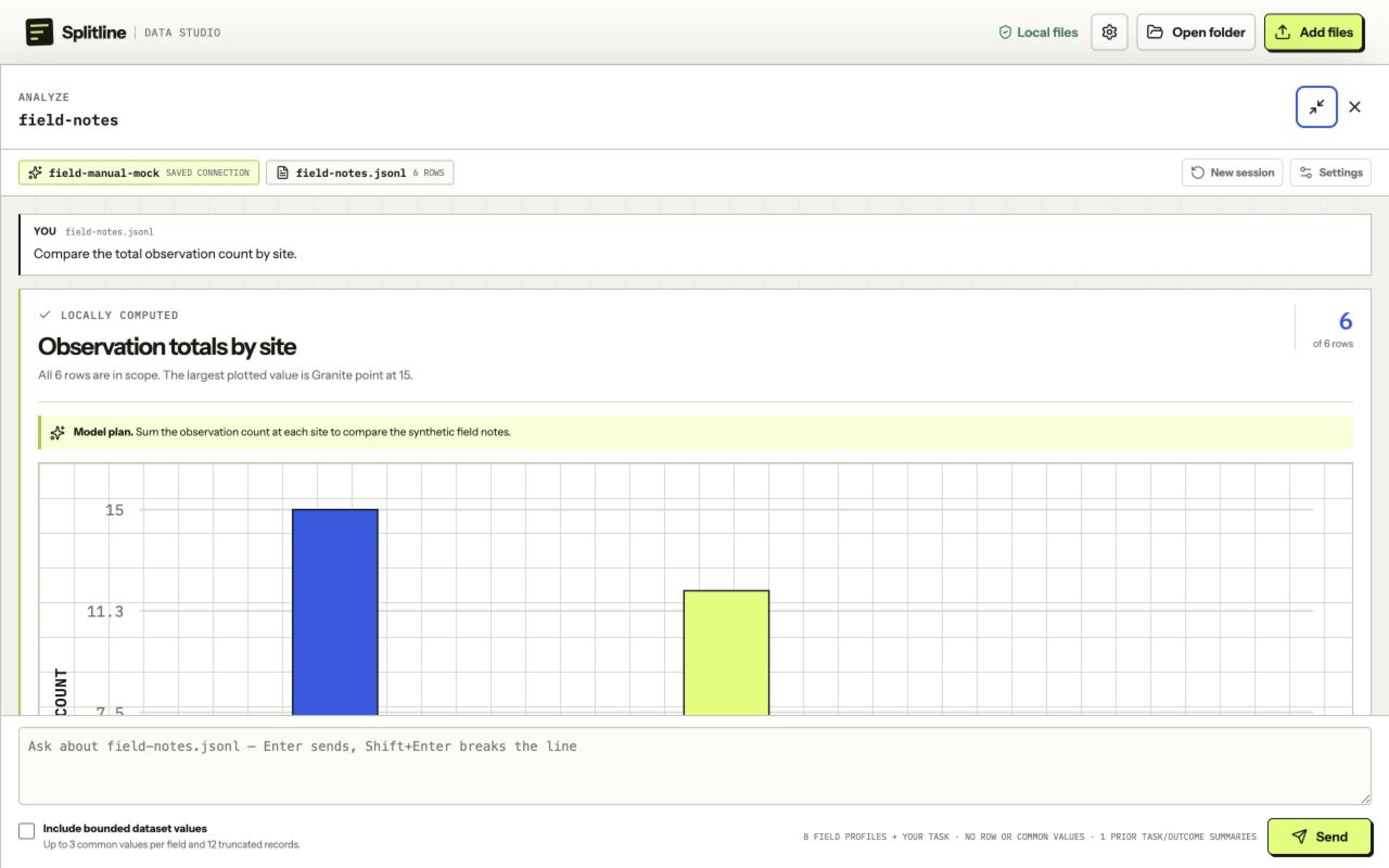
Computed results use a signal-lime ledger rail and keep local evidence visible as a chart, summary, or bounded table. A written answer uses a neutral rail because it did not compute over the records. Errors use a red rail.
An analysis result is a suggestion, not a stage takeover. Choose Open visualization when the file has no active view. If it already has one, choose Review new suggestion and then explicitly Replace current visualization. The current view and manual settings remain intact until that confirmation. Continue with Visualize to refine fields, pin a mark, and trace it back to Rows.
Use the maximize control when a chart needs the data stage. On wide windows, you can also resize or retract the drawer while the request continues. Switching the active row file adds a context divider rather than deleting earlier turns.
Manage the session
The transcript survives switching among Rows, Visualize, Schema, Issues, and Raw for the life of the running app. It contains questions, written answers, local results, errors, and file-change dividers only in memory; Splitline does not persist prompts, model replies, or results.
Choose New session to clear the transcript, conversation memory, and unaccepted visualization suggestions. Active visualizations remain available. Relaunching Splitline begins a new session and clears those active views too. Removing the saved connection deletes the non-secret settings and its separate Keychain token; it does not change the row files.