01 / Splitline field manual
Use Splitline
Start with the file’s shape. Splitline gives row datasets and arbitrary JSON documents different, purpose-built workspaces while keeping ordinary inspection on your Mac.
Updated
Choose a workspace
The extension decides where Splitline begins. You can move among files from the file rail without importing them into a project or uploading them anywhere.
| Your file | Starting workspace | What you can do |
|---|---|---|
.jsonl, .csv, .tsv |
Rows | Search records, inspect a row, profile the active file, compare loaded files for issues, edit complete files, build a local visualization, and optionally use Analyze. |
.json |
Explore | Follow the original hierarchy, search by key, path, value, or type, inspect large arrays in bounded ranges, and open a compatible array as rows. JSON documents are view-only. |
Parsing, profiling, search, edits, and validated analysis execution happen on your Mac. Only an AI request you send, license operations, and the version-only release check can use the network. Read the authoritative privacy boundary.
Take the five-minute tour
-
Open the included demo
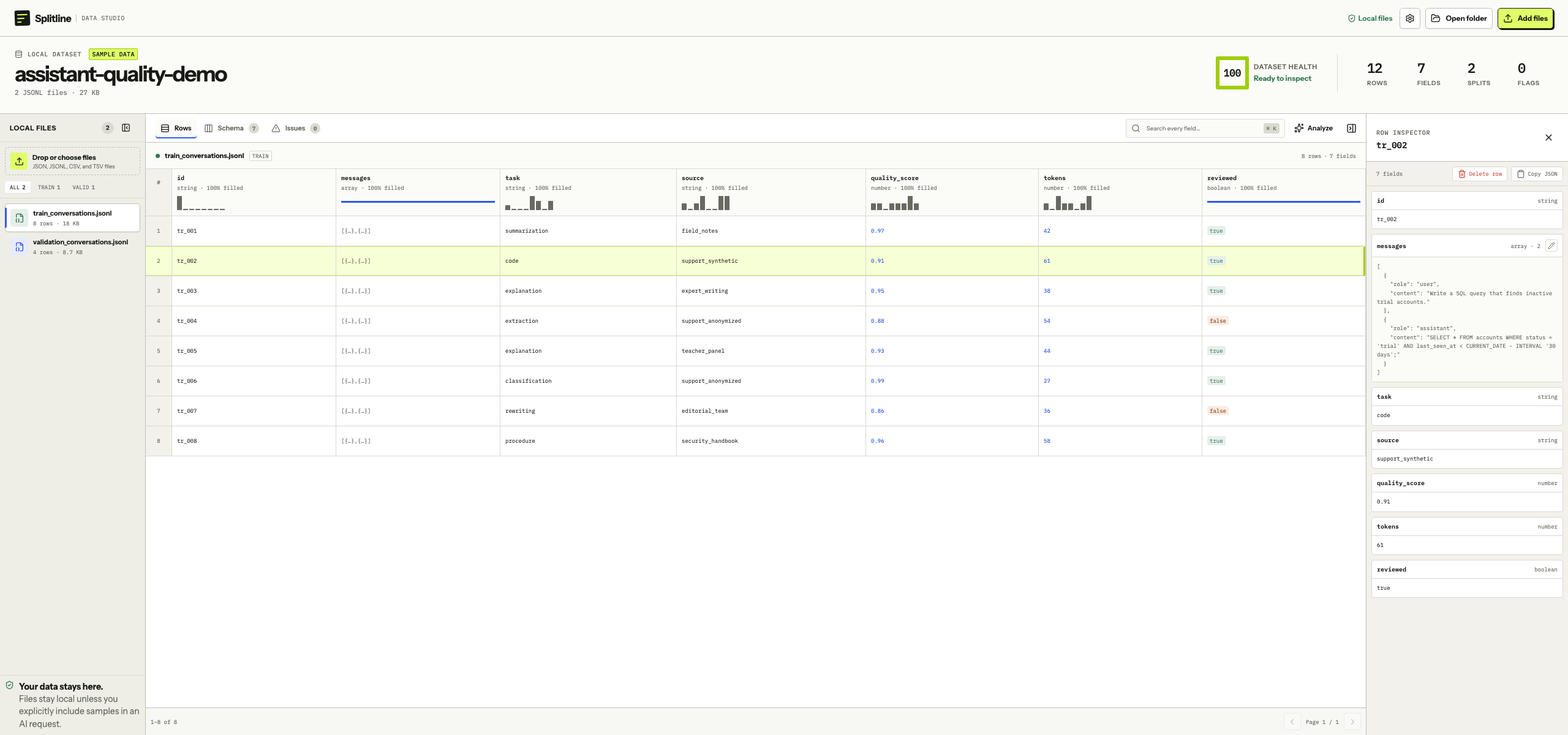
Launch Splitline and scan the file rail, split controls, health score, and Rows table. The demo is built in, so nothing has to be opened first.
-
Read one record
Select a row. The row inspector opens beside the table so nested values and long text stay readable without losing table context.
-
Check its shape
Open Schema for profiles of the active file, then Issues for parsing and cross-file checks across all loaded row files.
-
Open one of your files
Use Finder, Add files, Open folder, or drag a supported file into the window. Splitline reads it in place and never uploads it.
Find a task
- 02 Get started Install the signed Mac app and open files from Finder or Splitline. →
- 03 Row datasets Browse, search, profile, and diagnose JSONL, CSV, and TSV files. →
- 04 JSON documents Navigate arbitrary JSON with paths, bounded ranges, search, and Raw JSON. →
- 05 Edit and save Change complete row datasets, undo deletions, and choose the correct save path. →
- 06 Analyze Connect an endpoint, review the send boundary, and run validated analysis locally. →
- 07 Visualize Create a local starter or open an agent suggestion, refine it, and verify a pinned mark against Rows. →
- 08 Shortcuts and settings Use keyboard controls, resize drawers, and find file, license, and AI settings. →
- 09 Troubleshooting Diagnose parsing, partial loads, read-only files, save conflicts, and AI connections. →
For licensing, recovery, refunds, releases, and account help, use the focused License, Refunds, Releases, and Support pages.