05 / Splitline field manual
Edit and save row data
Repair complete JSONL, CSV, and TSV files with patch-based edits. Splitline changes the records you touched and preserves the source around them.
Updated
Check editability
A JSONL, CSV, or TSV file is editable only when Splitline retained its complete source text. A Finder file that stopped at a working limit has a read-only badge: you can inspect the loaded prefix, but you cannot edit or save it over a complete file.
JSON documents are always view-only, including a compatible array opened with View as rows.
Edit values
-
Edit a primitive in Rows
Double-click a text, number, boolean, or null cell. Keyboard users can focus the cell and press Enter.
-
Commit or cancel
Press Enter or move focus away to commit. Press Escape to cancel. Existing numbers and booleans keep their type when the draft is a valid value of that type; otherwise the edit becomes text.
-
Edit a nested value in the inspector
Select the row, expand an object or array field, and choose its edit control. Enter valid JSON, then choose Apply or press ⌘ Enter. Invalid JSON stays in the editor with an error until you fix or cancel it.
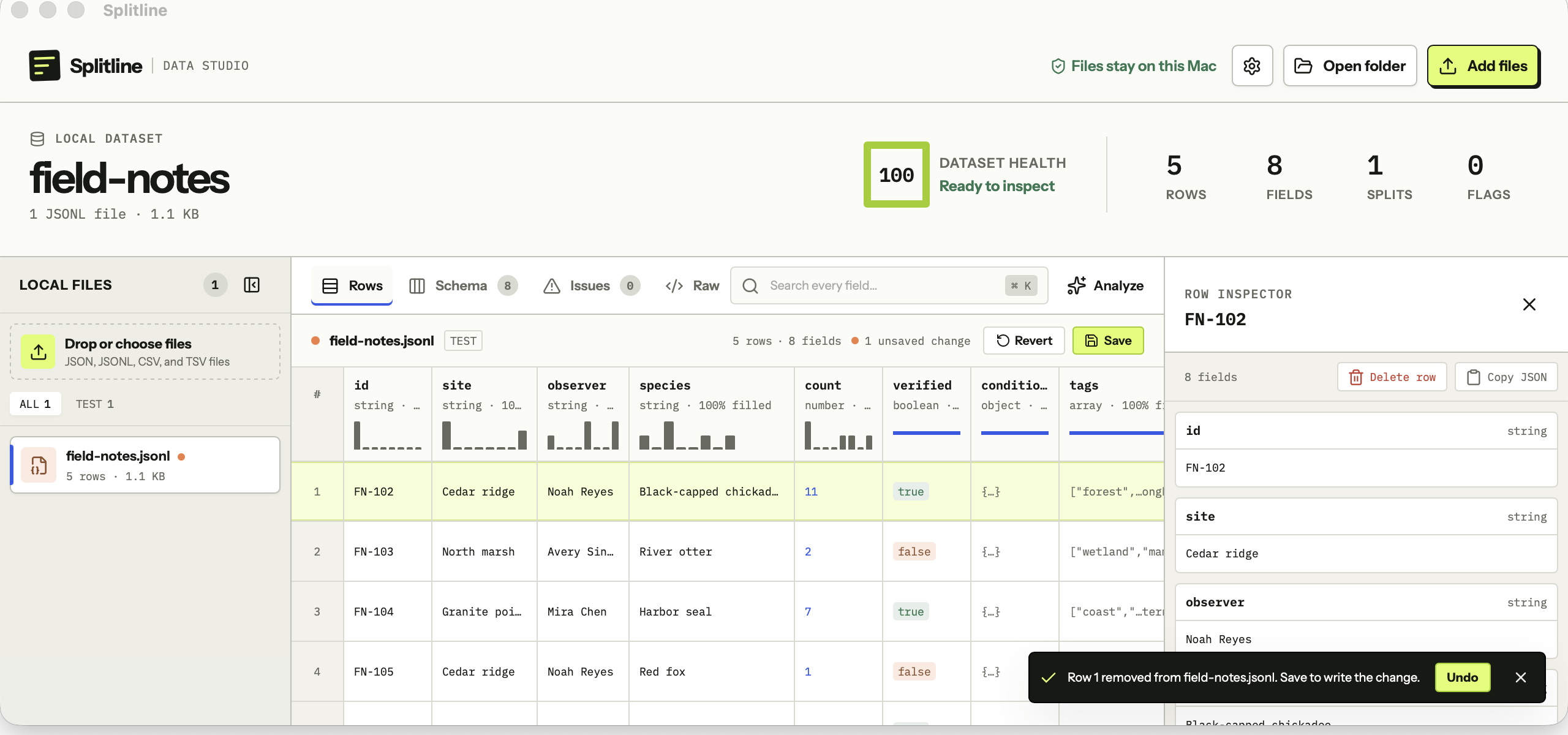
The active-file bar counts unsaved changed rows, and the file rail marks a dirty file with a dot. Schema profiles and health information recompute from the edited records before you save.
Delete and undo
Select a row, then choose Delete row at the bottom of the row inspector. The row leaves the table immediately and a toast identifies the removal.
Choose Undo in that toast to restore the most recent deletion. Undo is intentionally narrow: after a newer deletion, an older toast cannot splice a row back into a position that may no longer be correct. Saving makes the current deletions part of the written file.
Revert changes
Choose Revert in the active-file bar to discard every unsaved edit and deletion in that file. Splitline restores the file exactly as it was loaded and clears the selected row.
Revert affects only the active file. It is not available after Save has established a new loaded baseline.
Use the unsaved-change count to verify the active file before choosing it. Removing a dirty file from the rail also discards that file’s session edits.
Save or export
The button label tells you which persistence path is available:
| Where the row file came from | Control | Result |
|---|---|---|
| Finder open, complete load, unchanged on disk | Save or ⌘ S | Atomically replaces that same file in place. |
| Add files, Open folder, or drag and drop in the Mac app | Export copy | Opens a native Save dialog; the original stays untouched. |
| Browser build | Download copy | Downloads the edited content; the browser never writes the original. |
| Partial Finder load | read-only | No edit or save control is offered. |
.json document |
View-only | No edit or save control is offered. |
If a Finder-opened file changed on disk after Splitline loaded it, Save refuses the write instead of overwriting the other change. Your unsaved Splitline edits remain in the current session so you can decide how to reconcile them.
Cancelling an Export copy dialog also leaves the edits in the session. The success receipt names the exported file but does not expose its destination path to the web interface.
Understand source preservation
Save does not serialize the whole dataset from memory. It patches the retained source:
- an edited record is re-serialized in its original location;
- a deleted record is removed from its original location; and
- every untouched source span stays byte-identical, including whitespace and malformed lines that never became records.
Open Raw before saving to inspect that pending patched result for complete files at or below 1 MiB. This is why Splitline refuses to make a partial load editable: it never risks replacing a complete file with the prefix it happened to inspect.